

How To Use eBay Seller Hub | Step-by-Step for Beginners
How To Use eBay Seller Hub | Step-by-Step for Beginners
🎯Watch This If You Want To:
- Centralize operations and reduce busywork.
- Boost search visibility with data‑driven promos.
- Scale listings in bulk without chaos.
- Lower defects and protect seller level.
Why Seller Hub Matters
- Centralized control: orders, returns, listings, promos, and metrics in one place.
- Faster workflows: fewer clicks to ship, refund, or respond—better buyer experience.
- Better decisions: live sales, traffic, and performance metrics guide what to do next.
Activate Seller Hub (2 steps)
- Search “eBay Seller Hub” (or use the opt‑in link) and enable “Use Seller Hub for all selling.”
- Click “Start using Seller Hub” → you’ll land on the Overview dashboard.
Top Tabs (what to use them for)
- Overview — your command center; configurable widgets.
- Orders — awaiting payment/shipment, returns, disputes; print labels.
- Listings — drafts, active, unsold, scheduled; views & offers.
- Marketing — sales, coupons, volume pricing, Promoted Listings (Advanced=PPC; Standard=pay‑per‑sale).
- Store — brand banner, categories, featured items (use VistaCreate assets).
- Performance — Seller Standards & Service Metrics; 7/31/90‑day views.
- Payments — transactions, payouts, reports.
- Research — Terapeak insights for product/price trends.
- Reports — bulk add/revise/relist/end; fulfill & mark dispatched at scale.
Must‑Watch Widgets on Overview
- Sales — revenue trends & top items (double‑click to drill in).
- Orders — quick actions for ship/label/returns.
- Listings — create/edit; monitor questions/offers/auctions.
- Feedback — respond fast; consider automated feedback replies.
- Seller Level — track defects < 2% and cases closed w/o seller resolution < 0.3%.
- Traffic — impressions, CTR, page views, conversion; split organic vs promoted.
- Selling Tools & Promotional Offers — shortcuts to promos, time away, third‑party apps.
- Announcements — policy and feature updates.
Customize Your Dashboard (do this once)
- Click “Customize” on Overview; pin to top: Tasks/Orders, Listings, Sales, Seller Level.
- Hide onboarding widgets you don’t use; keep Traffic visible to guide promos.
- Review layout monthly—priorities change with seasonality.
✅Tips, Insights & Pro Tips
- ✅ Tip: Approve returns & upload labels within 24h to avoid eBay auto‑labels and delays.
- ✅ Insight: Use Traffic to spot titles needing keyword refresh (low CTR) vs prices needing work (low conversion).
- ✅ Pro Tip: Use Promoted Listings Advanced (PPC) for launches/testing; Standard for steady sellers to protect ROAS.
- ✅ Pro Tip: Schedule holiday sales/coupons in Marketing; stack with markdowns on slow movers.
- ✅ Pro Tip: Check Seller Level weekly; resolve defects before the 20th monthly evaluation.
Suggested Videos
eBay Buyer Says Their Item Was Not Delivered [INR Case Solved]
14:40
eBay Suspended My Account: Here's What I Did To Get It Back! (2025)
12:26
eBay International Shipping Program: What It Is and How To Use It?
12:39
How To Handle eBay Returns | Step-by-Step Guide for eBay Dropshipping
35:46
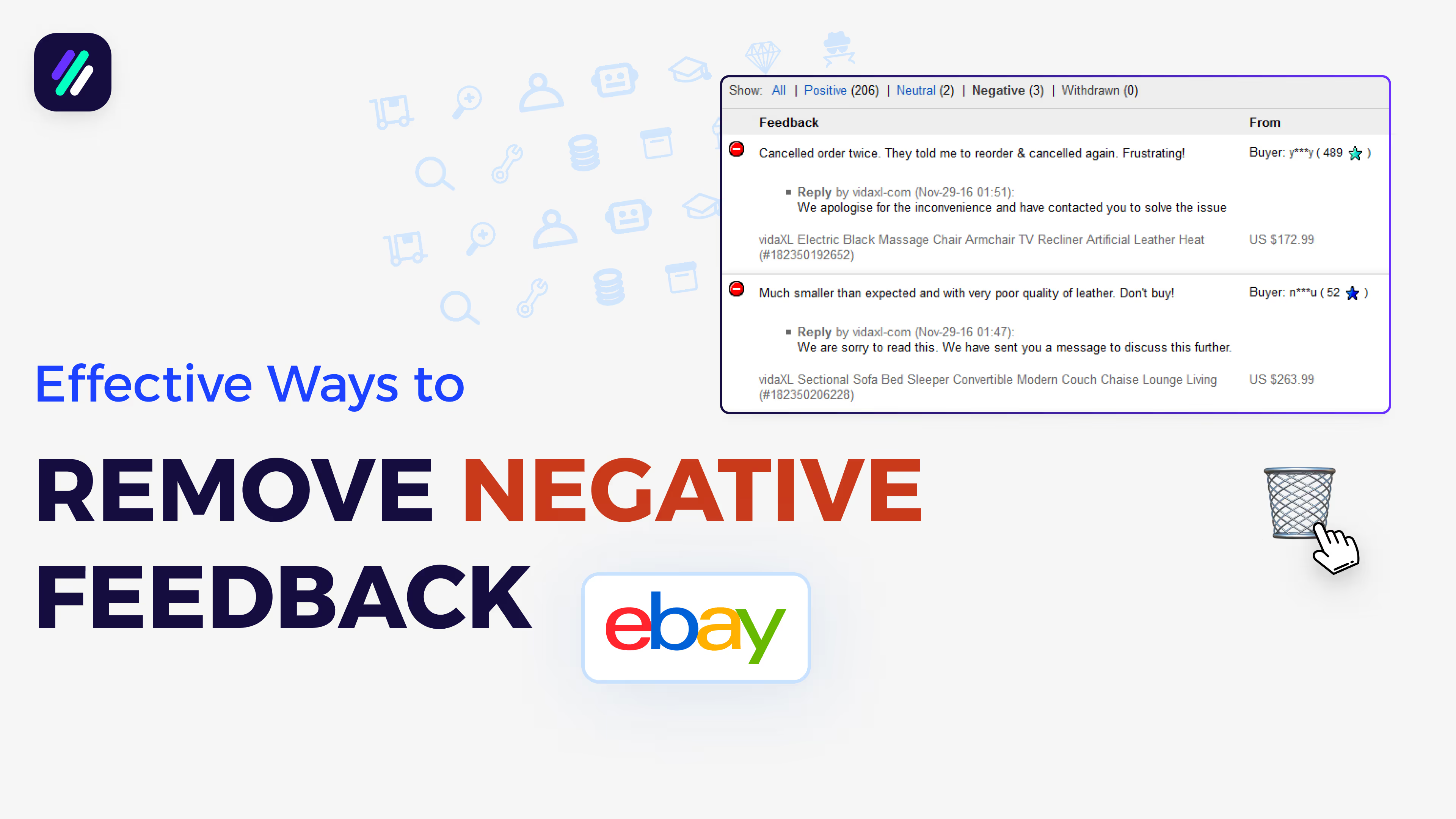
eBay Negative Feedback Removal Made Easy
15:54
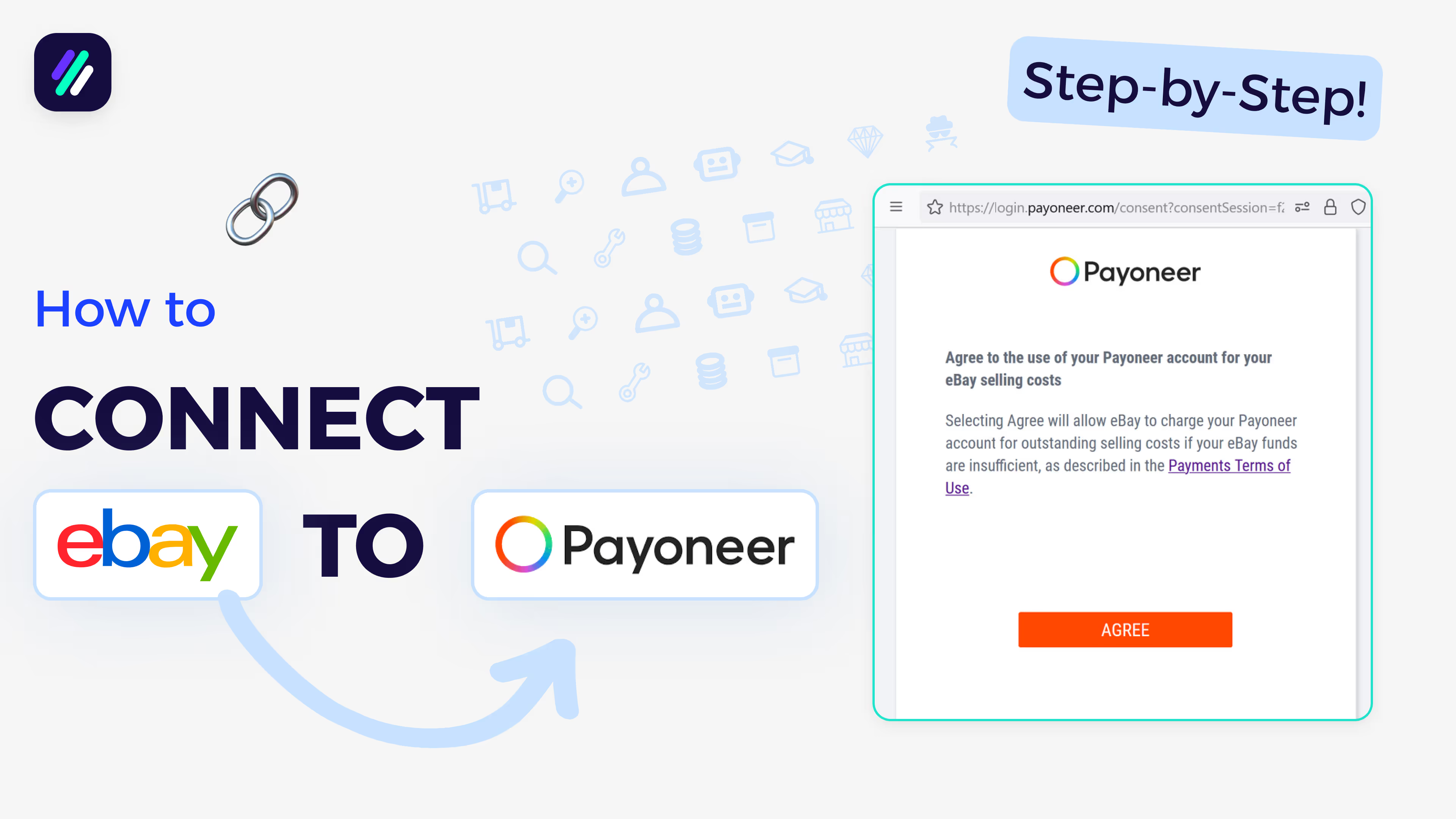
How To Connect eBay to Payoneer in 2025 (Complete Step-by-Step)
19:08
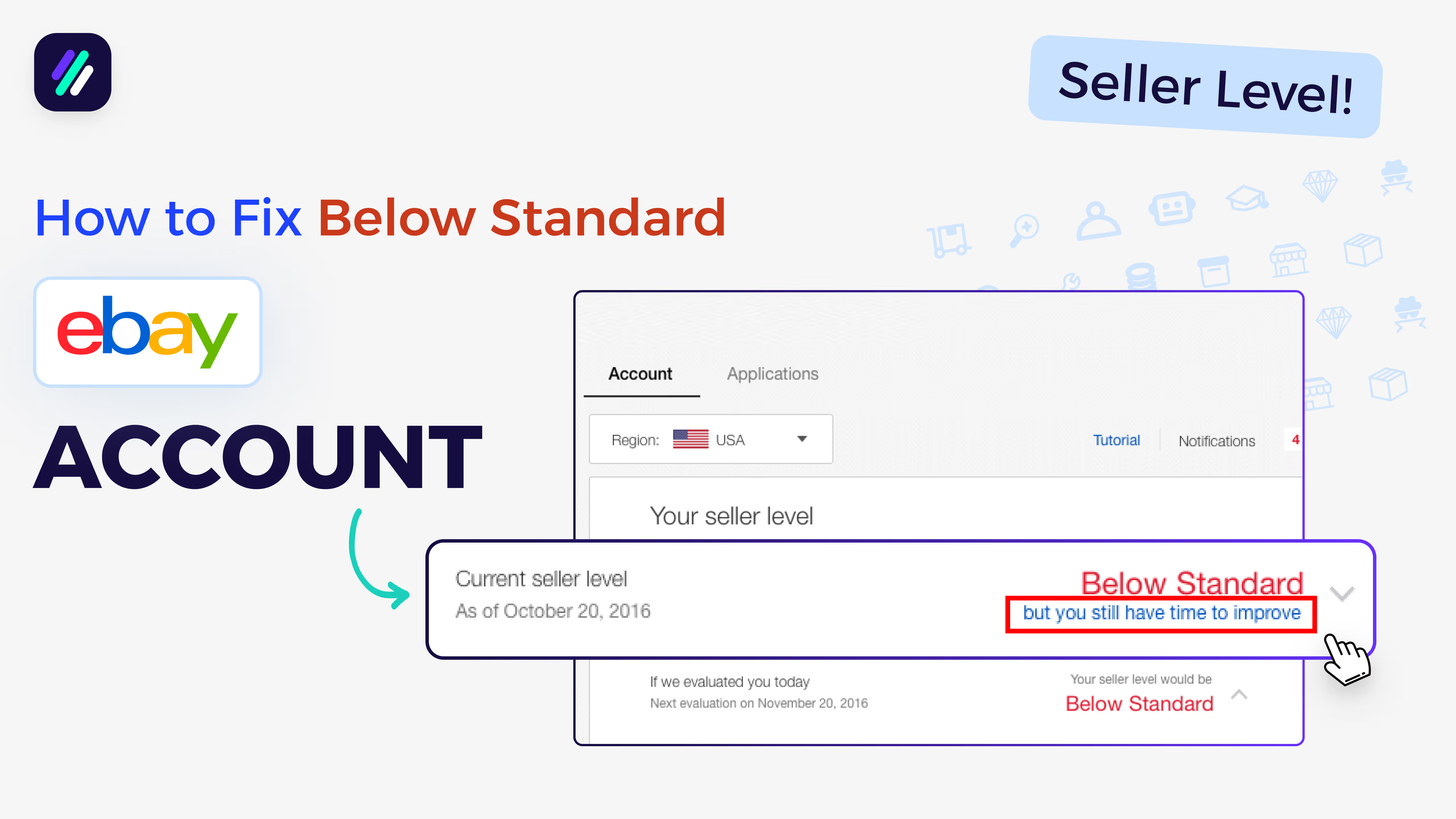
My eBay Account is Below Standard - Here’s How To Fix It
29:34
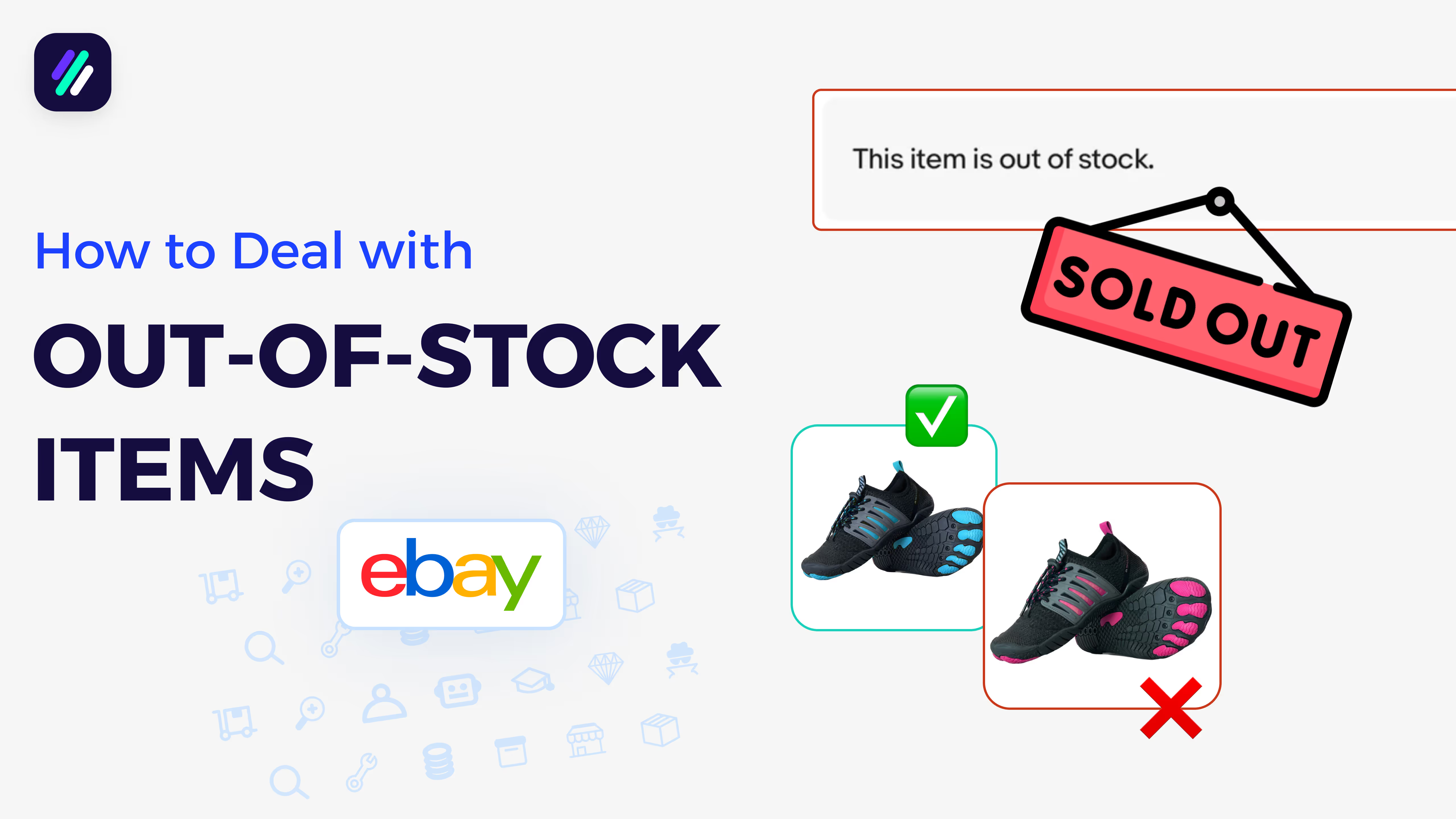
How to Handle Out-of-Stock Items in eBay Dropshipping | Avoid eBay Seller Defects!
11:53
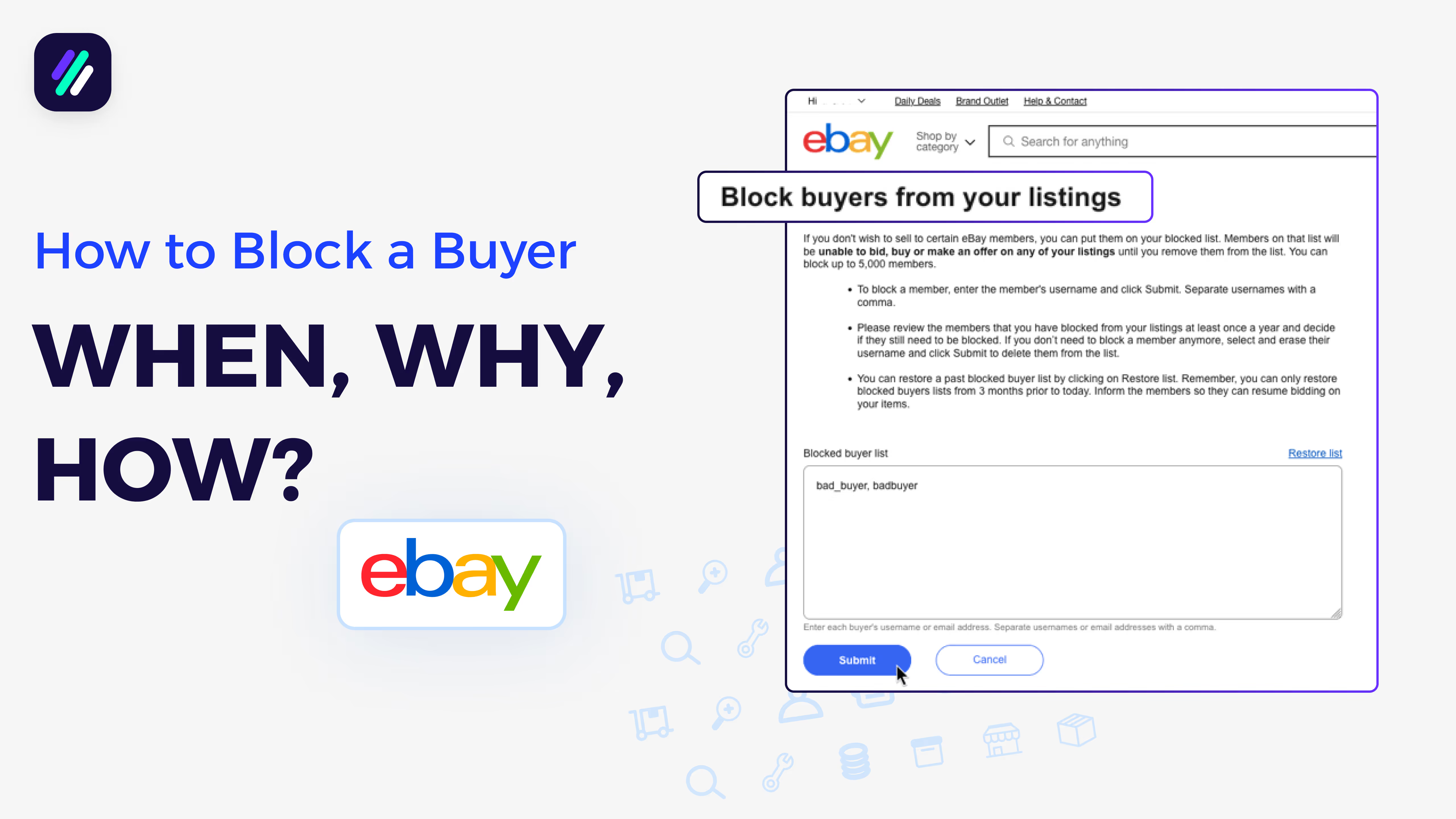
How To Block A Buyer On eBay | WHEN to do it, WHY to do it, and HOW
9:08
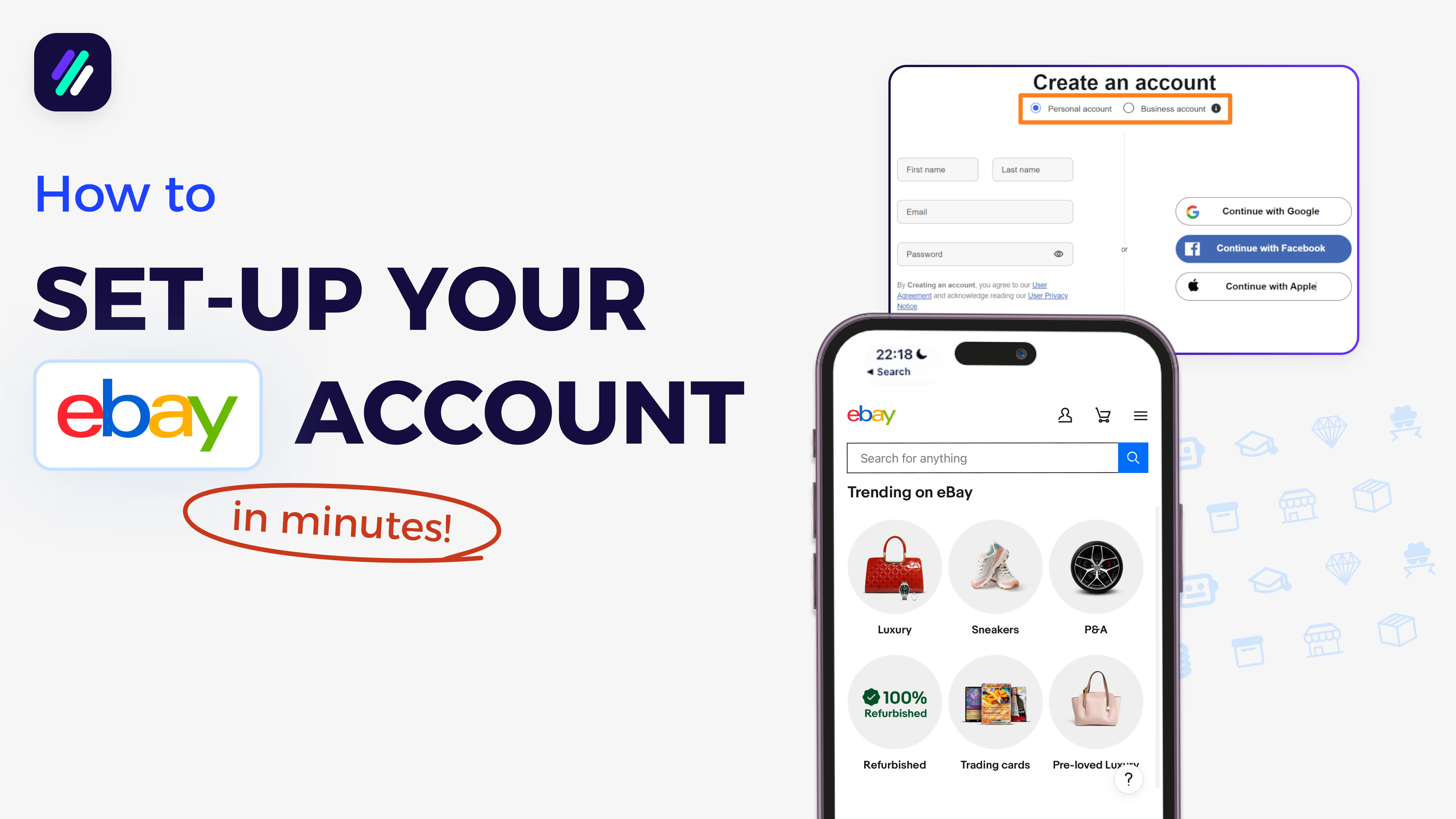
How To Setup Your eBay Seller Account In Minutes (Step-by-Step)
15:21
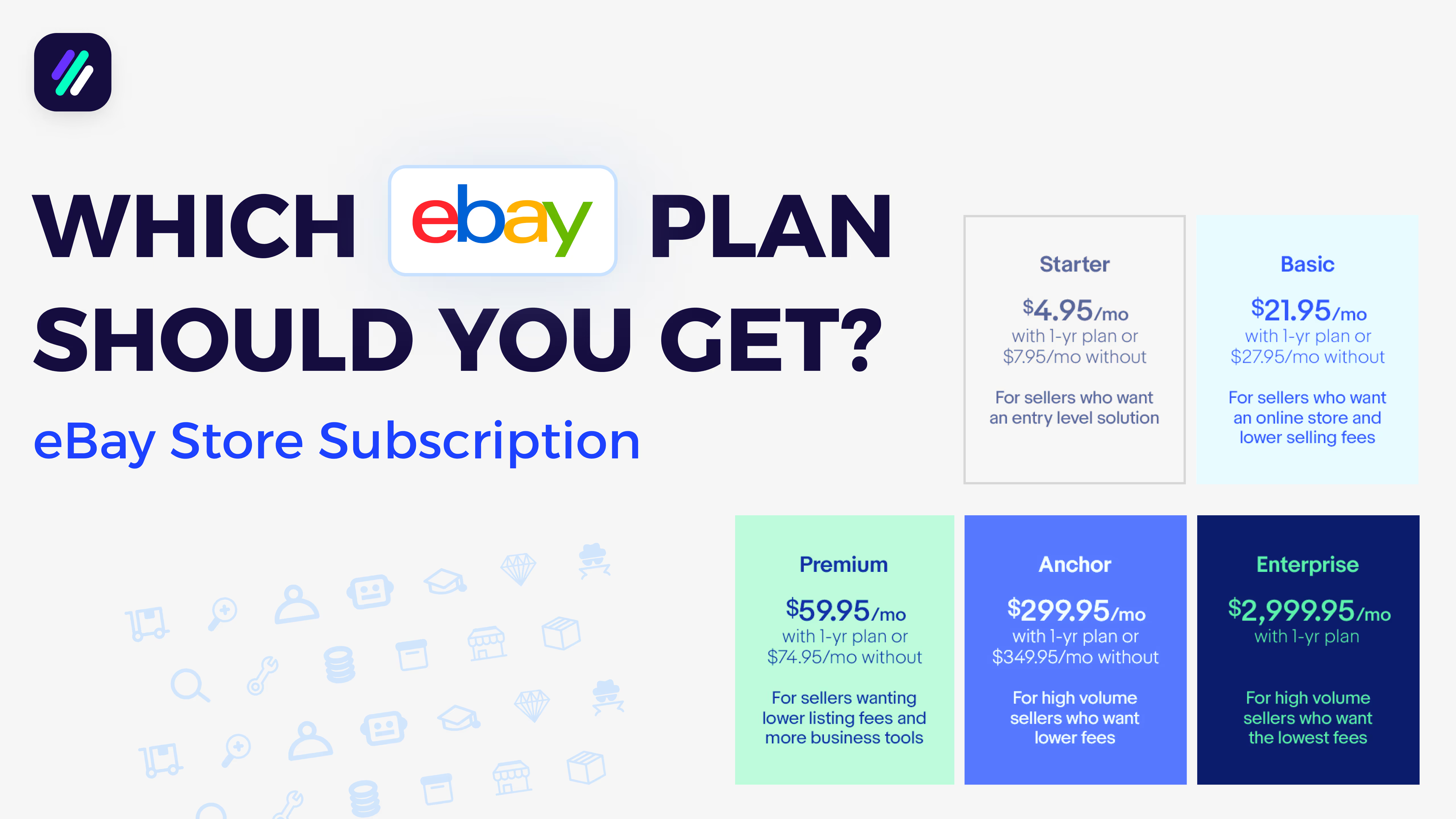
eBay Store Subscription: Which eBay Plan Should You Get?
16:58