How to upload products to AutoDS tutorial
How to upload products to AutoDS tutorial
📚 What This Tutorial Covers
Uploading Items to AutoDS Tutorial
Goal: Learn how to upload your researched and saved products from ZIK Analytics directly to AutoDS, saving time and streamlining your dropshipping workflow.
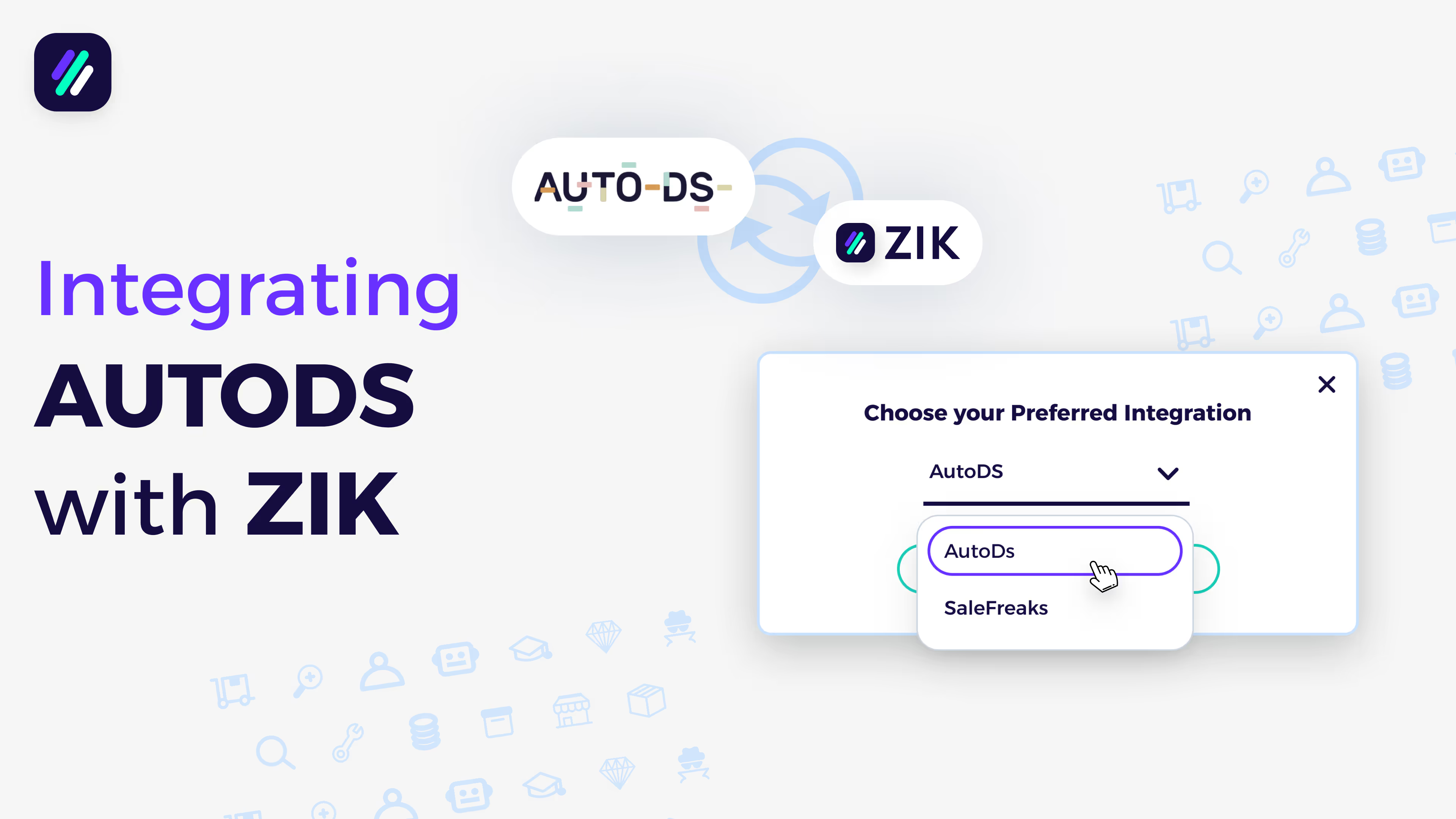
✅ Insight: Once your ZIK account is integrated with AutoDS, you can send products straight to your AutoDS drafts in just a few clicks — no manual upload needed.
1. Accessing Your Saved Products
Go to My Products on the left sidebar.
Choose the folder that contains your products — for example, Amazon or YouTube.
You’ll see all your saved product listings displayed with details like title, image, and price.
2. Uploading All Products
Click Upload All to AutoDS.
A popup will appear with the following options:
- Lister: Select AutoDS
- Store: Choose your connected store
- Marketplace: Select your selling platform (e.g., eBay)
- Title Source: Choose Supplier Title (recommended for best accuracy)
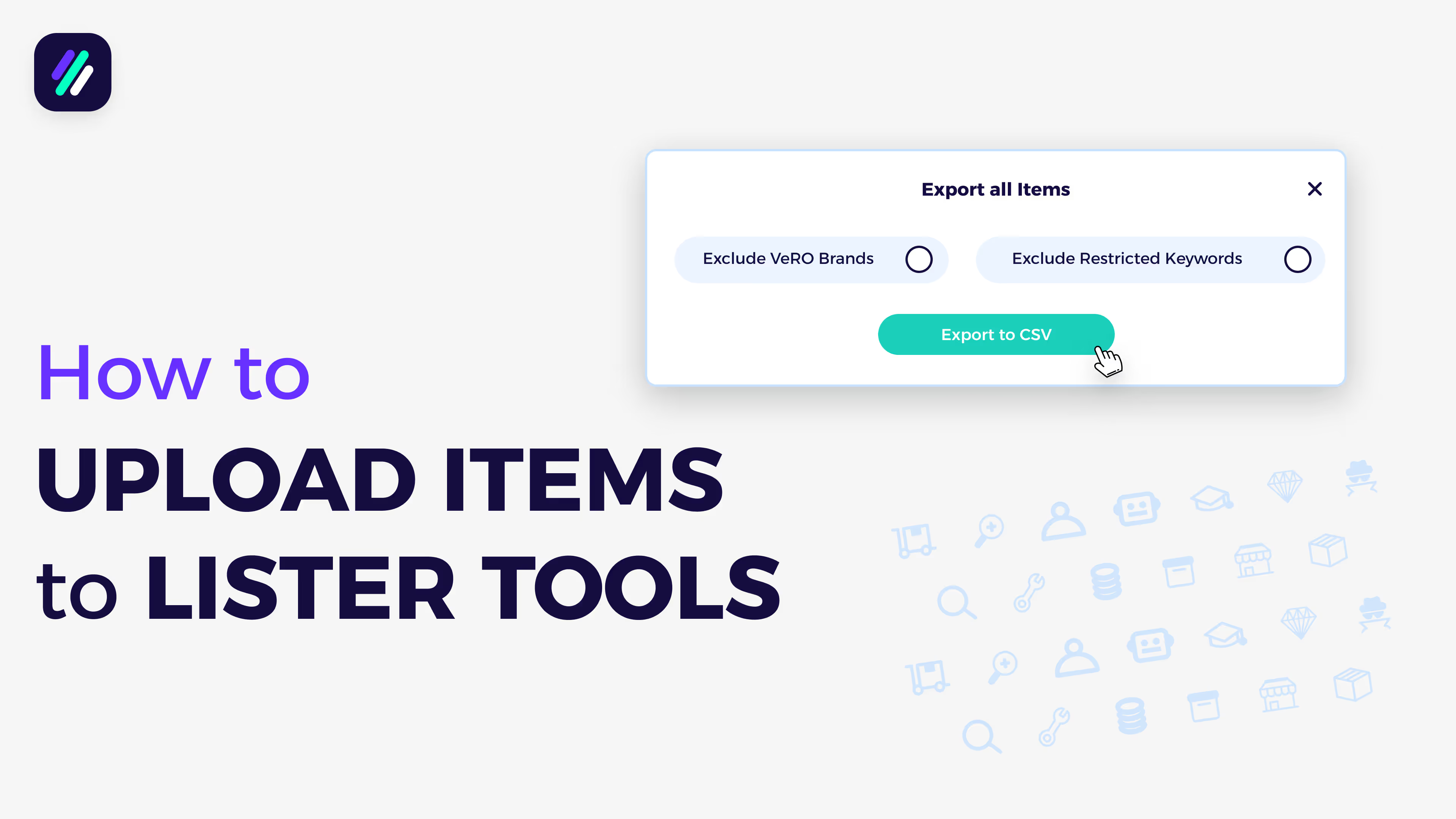
- Filters: ✅ Exclude Vero Brands
- ✅ Exclude Restricted Keywords
Then click Upload Items. Your upload will begin, and the progress will appear on your screen.
3. Uploading Selected Products
You can also upload specific items individually:
- Check the products you want to upload
- Click Upload Selected
- Follow the same steps to choose AutoDS, store, and filters
✅ Tip: This is useful when you only want to list your top-performing or recently researched items.
4. Managing Your Listings in AutoDS
After uploading, log in to your AutoDS account.
All uploaded products will appear in your Drafts section, ready for editing or publishing to your eBay store.