Autopilot tutorial - Amazon
Autopilot tutorial - Amazon
📚 What This Tutorial Covers
Autopilot Tutorial (Amazon Sourcing)
Goal: Learn how to use ZIK Analytics’ Autopilot Tool with Amazon as your supplier to automatically find and upload profitable eBay products.
The Autopilot scans supplier data from Amazon, Walmart, and AliExpress and cross-matches it with eBay listings, showing you exact or similar items you can list for profit.
✅ Insight: Autopilot helps you bulk-find high-demand, high-profit products fast — saving you time while keeping your listings competitive.
1. Accessing the Autopilot
Open Autopilot from the right panel or under Advanced Tools → Autopilot.
Click Start New Scan, choose your supplier (Amazon), and name your scan (e.g., Tutorial – Amazon).
✅ Tip: Each scan can have its own settings, supplier, and filters depending on your strategy.
2. Setting Up Filters
Amazon Filters:
- Review Count: e.g., Minimum 10 reviews
- Rating: e.g., Minimum 3 stars
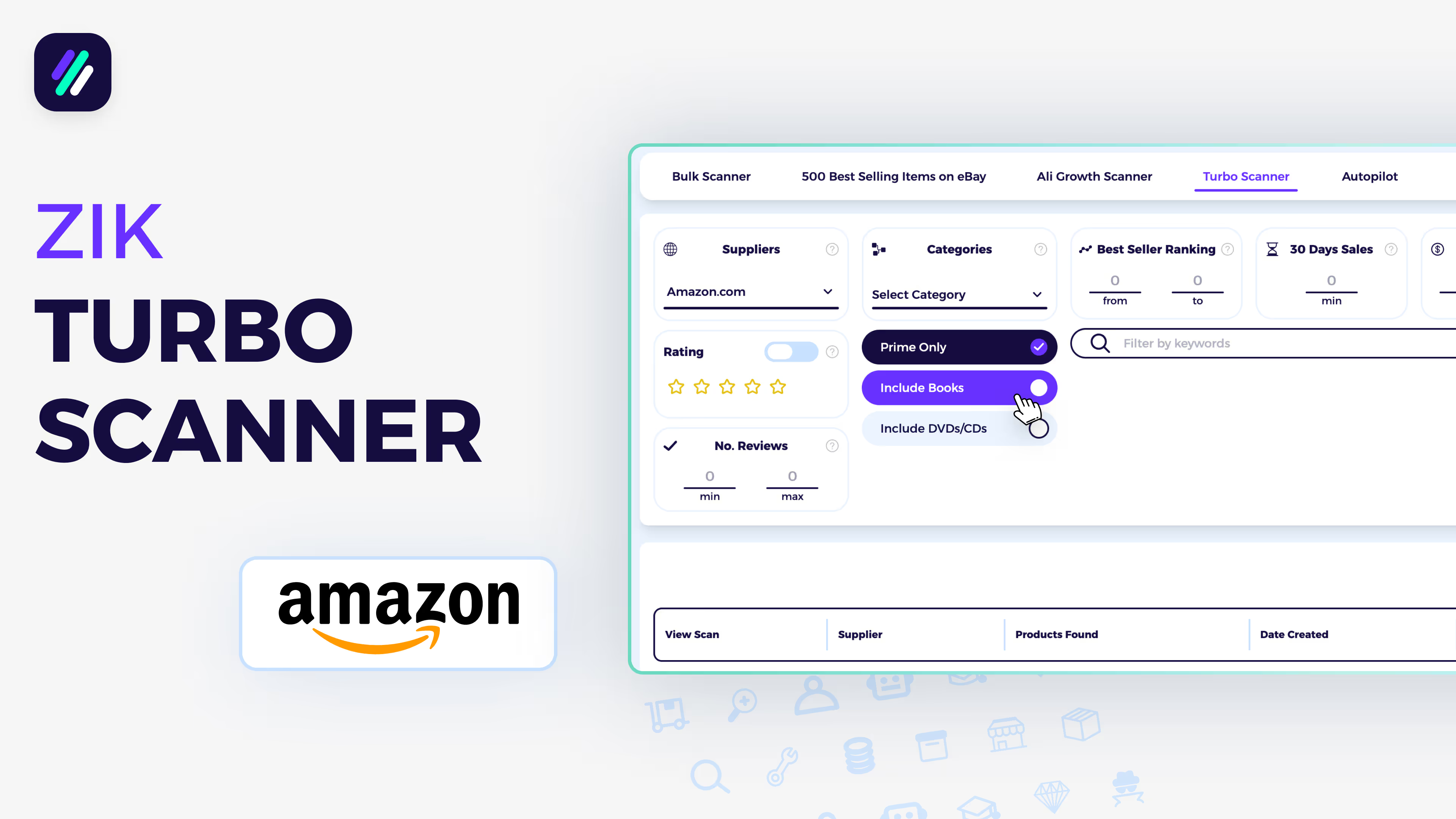
- BSR (Best Seller Rank): e.g., 0–5,000 to target top-selling Amazon items
- Only Prime: Ensures fast shipping and fewer return issues
- Include Similar Items: Expands results with related listings
eBay Filters:
- Competition: e.g., Max 25 competitors
- Sales: e.g., Minimum 3 in the last 14 days
- Price Range: e.g., $20–$10,000
- ROI: e.g., 0.15–0.20 minimum
✅ Pro Tip: Smaller stores should use tighter filters for quality; larger stores can keep them broad to scale faster.
3. Running the Scan
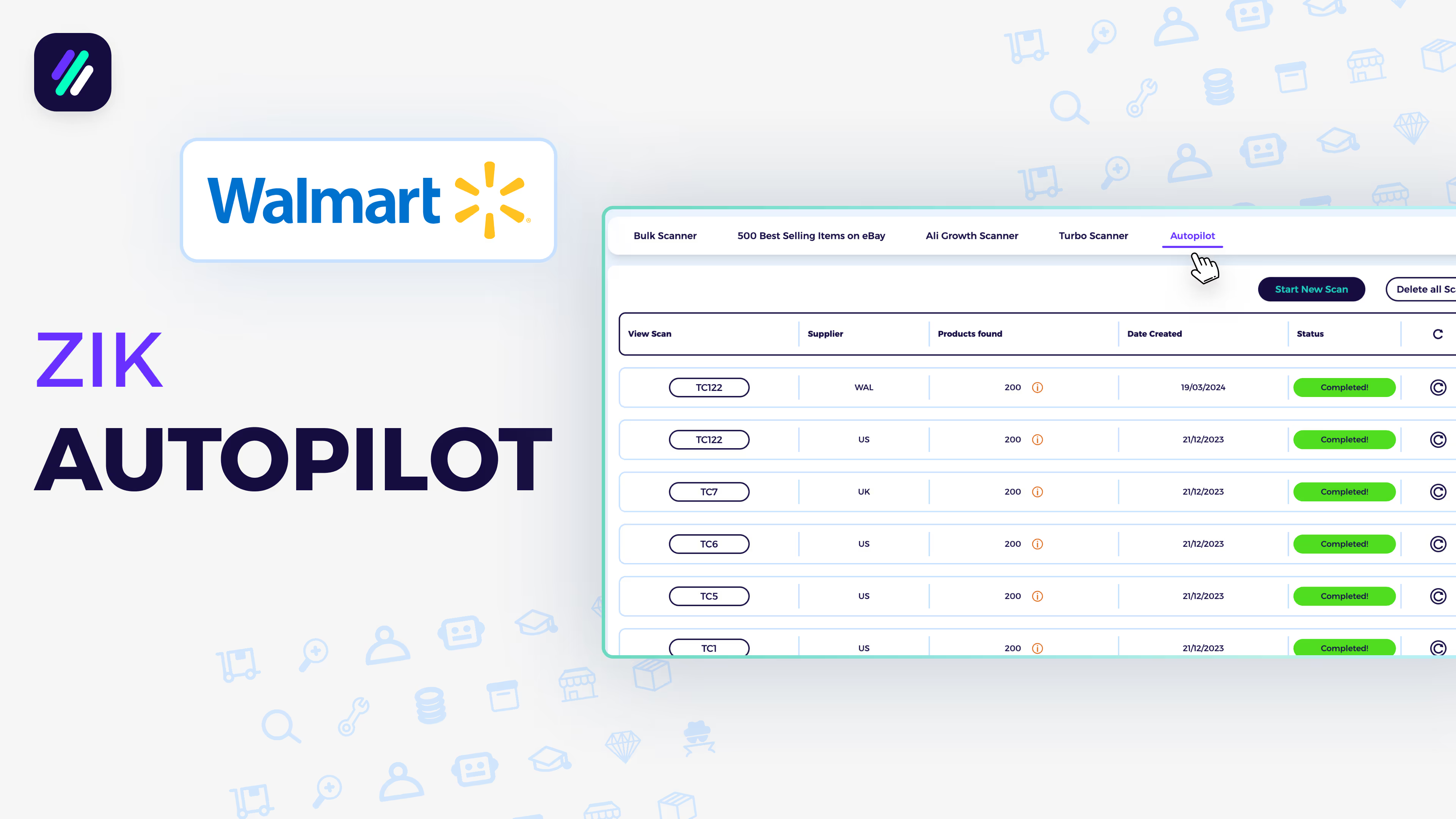
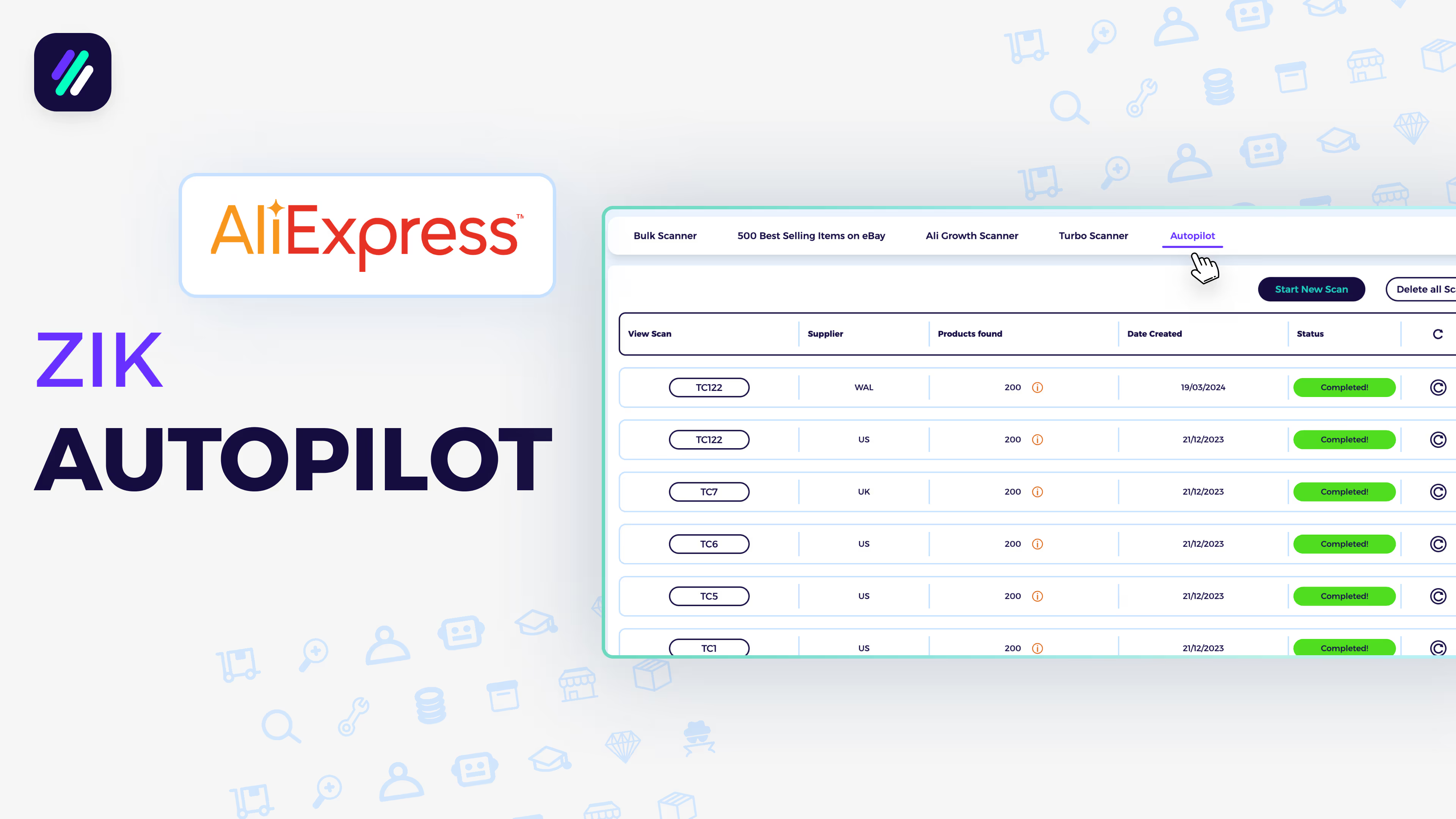
Click Create Scan. ZIK cross-matches eBay and Amazon data — this may take a few moments. Once complete, click View Products to see:
- eBay & Amazon photos, titles, and prices
- Sales, competition, profit, ROI, and sell-through rate
4. Exporting or Uploading Products
Select items individually or Select All. You can:
- Export to CSV to analyze or upload manually
- Upload directly to your lister or automation tool (e.g., AutoDS)
✅ Tip: Use filters to exclude Vero brands or restricted keywords before exporting.