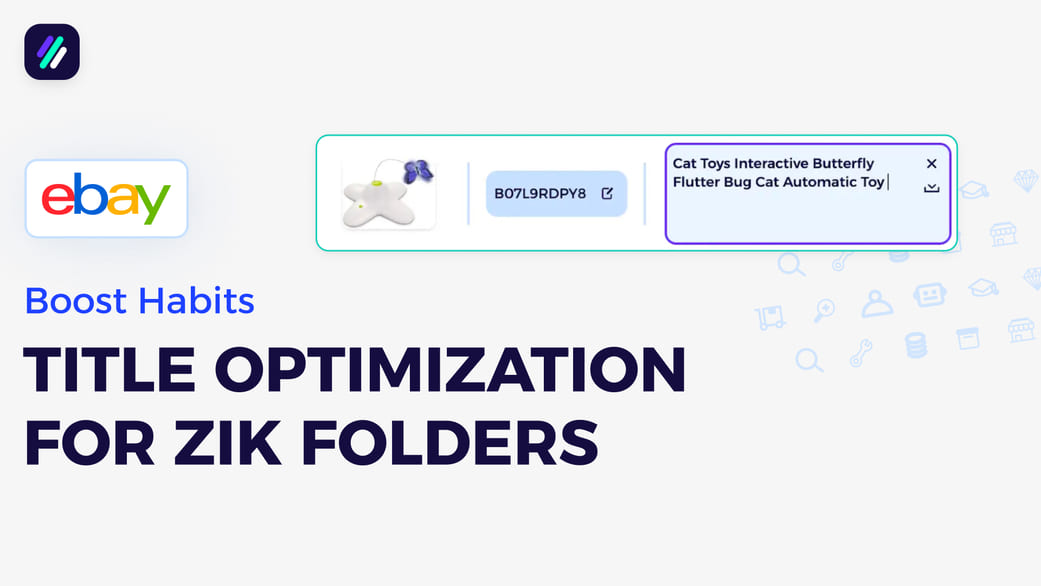
How to Optimize Your Titles Inside the ZIK Folder
How to Optimize Your Titles Inside the ZIK Folder
📚 What This Video Covers
Improve eBay Visibility With Better Titles
Goal: Learn how to optimize product titles inside a ZIK folder before uploading to eBay, so your listings get better exposure and rankings.
✅ Insight: Title optimization is one of the simplest ways to improve visibility without changing the product.
Why Optimize Titles Inside ZIK?
Using optimized titles is a smart habit that gives you an edge.
eBay’s search algorithm, Cassini, treats optimized titles as more unique.
When your title looks different from other sellers using default supplier titles, your listing stands out.
As a result, Cassini is more likely to push your product higher in search results.
Step 1: Open the Products You Want to Optimize
Go to My Products and open the folder containing the products you plan to optimize.
To speed things up, open the Title Builder tool in a separate browser tab.
Step 2: Research Keywords With Title Builder
In the Title Builder, enter the general name of your product.
For example: Sanding Sponge.
You’ll see keyword data organized and ready to use.
This data helps you understand what buyers are actually searching for on eBay.
Step 3: Create and Apply the Optimized Title
Build an improved title using the keyword insights.
Go back to your product folder.
Click the product title, paste the optimized version, and click Save.
Repeat this process for each product you want to optimize.
Step 4: Choose the Correct Title Source When Uploading
This step is critical.
If you’re uploading through a product monitor integrated with ZIK, select the correct title source.
If all products in the folder are optimized, click Upload All.
If only some products are optimized, click Upload Selected.
For the title source, choose eBay, not Supplier.
✅ Important: This ensures your optimized title is sent to eBay.
Step 5: Exporting as CSV
If you’re requesting a CSV file instead, the optimized title will be pulled directly from the eBay Title field.
This works for both manual uploads and monitor-based uploads.
Suggested Videos
How to Build a Competitor Army That Finds Winning Products for You
How to Find Strong Competitors That Match Your Selling Business Model
How to Build a Weekly Niche Research Habit That Finds Hidden Gem Niches
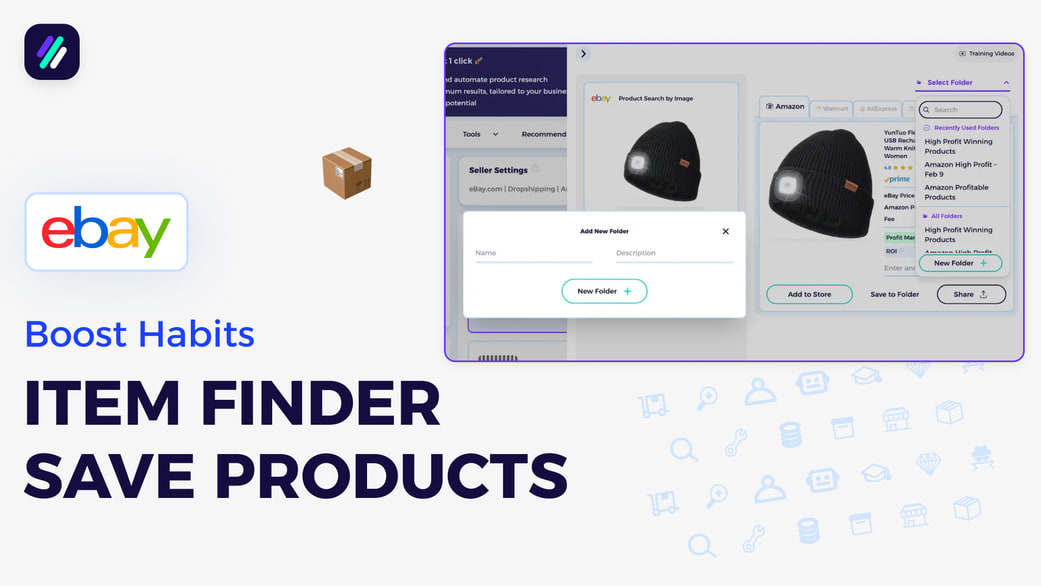
Quickly Save Products to ZIK Folders
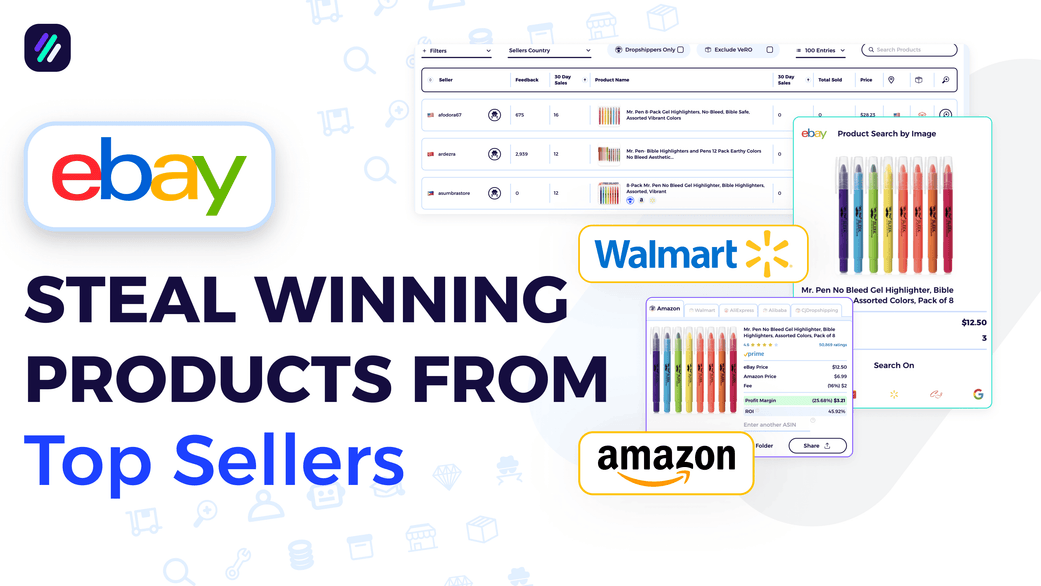
Scan All Your Competitors Items at Once Using the Bulk Scanner
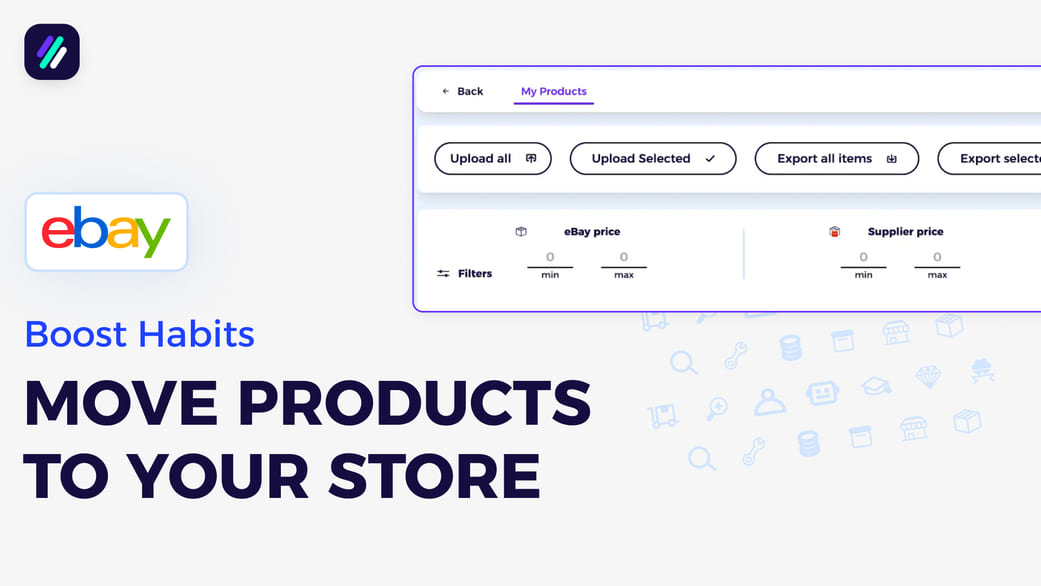
Add Products to Your Lister or Export Them to CSV After Finding Them on ZIK